Short answer: size the code to the distance it will be scanned from — roughly 1 cm of code for every 10 cm of distance. For a phone held at arm's length that means 2 cm across, for a poster read from two metres it means 20 cm. And export SVG for print, not a 2048-pixel PNG.
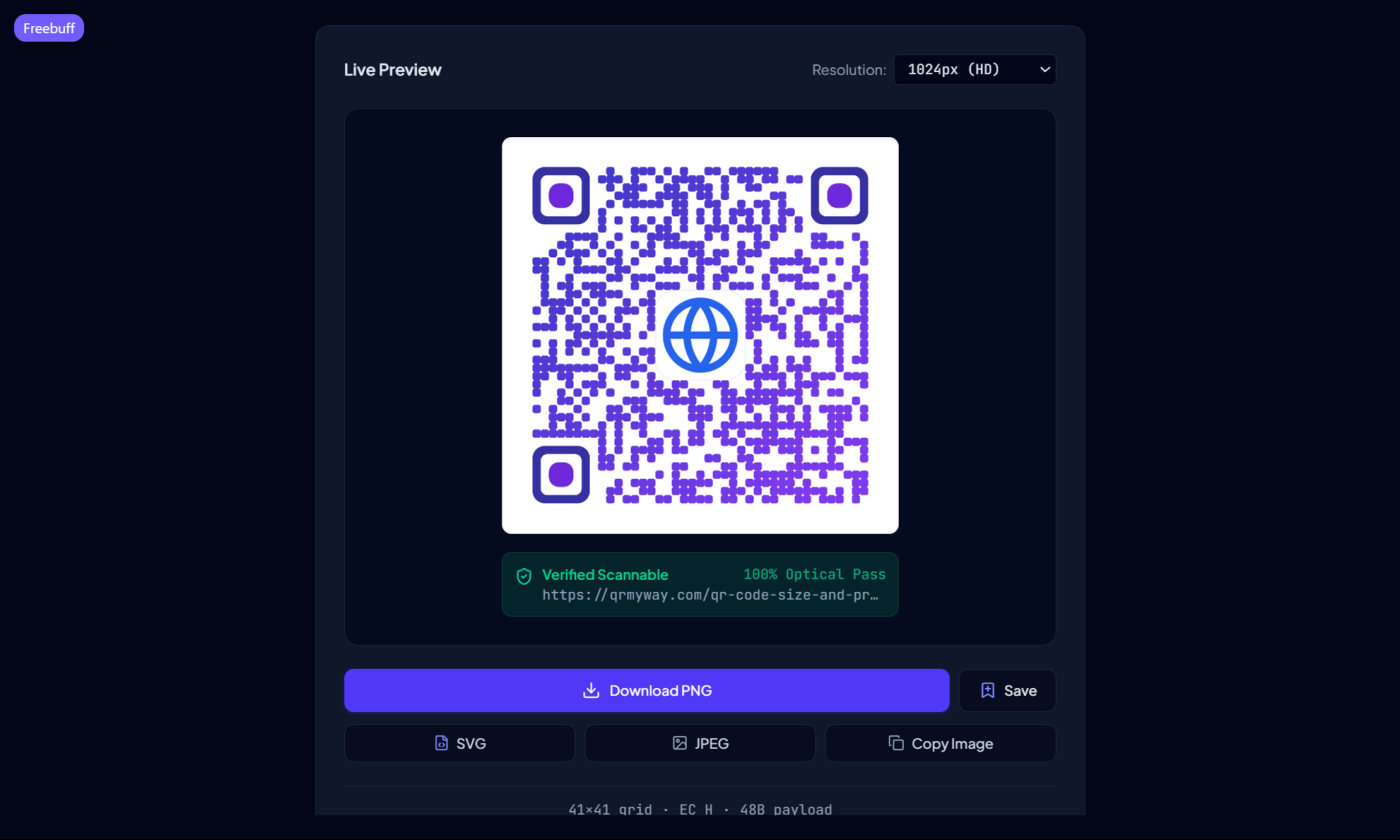
Modules, not pixels
A QR code is a grid of modules, and the scanner needs each module to remain a distinct shape with a clear gap between it and its neighbours. That is why the question "what resolution do I need" is really "how big is one module at final print size".
The grid size depends on how much data you encode: a short URL might use 21×21 modules, while a full contact card can need 45×45 or more. Divide the printed width by the module count and you have your module size:
| Printed width | 21×21 symbol | 45×45 symbol |
|---|---|---|
| 2 cm | 0.95 mm | 0.44 mm — too small |
| 3 cm | 1.43 mm | 0.67 mm |
| 5 cm | 2.38 mm | 1.11 mm |
The same 2 cm code that works perfectly for a short link is unprintable for a vCard, because the vCard needs twice the modules in the same space. Keep 0.5 mm per module as the floor for office printing — toner spread and paper texture eat anything finer — and give it margin above that for anything glossy.
Why a high-resolution PNG is not a print file
A 2048-pixel PNG printed at 20 cm across is 260 pixels per inch: fine for a photo, coarse for a grid of thin dark squares, and the resampling that print software applies will round the corners of modules unpredictably. At 2 cm the same file is 2600 ppi and looks perfect — which is exactly why designs pass on the proof and fail on the poster.
Vector output has no pixel grid at all: the SVG is rendered by the printer at its native resolution, so module edges stay sharp at any size. The generator's SVG export writes each module as a path plus the corner eyes, with the gradient and mask ids namespaced so several codes can sit in one document without colliding. That is the file to send to a print shop.
Use PNG when the destination is a screen — a slide, a website, a social post — and JPEG only when a format without transparency is required, since JPEG compression softens exactly the hard edges a QR code depends on.
Scanning distance sets the size
The 1:10 rule is a working approximation: at 30 cm the code should be about 3 cm, at 3 m about 30 cm. Long-range scanning from a car park needs a code measured in metres, and at that size a low-density symbol (short payload) is both easier to print and easier to read.
Table tents, menu stands and shelf labels are usually read at 20–40 cm, so 2–4 cm is right. Window decals and posters are read from 1–3 m, so 10–30 cm. Product packaging is read at 15–25 cm in the hand, so 2 cm is enough — but only if the payload is short enough to keep the modules above the floor.
Keep the quiet zone when you place it
The blank margin around the symbol is what lets a scanner find the code's edges. Four modules is the specification; two is the practical minimum. This is where layout decisions kill codes: a code placed flush against a dark border, cropped tight to a rounded corner, or set on a photograph loses its margin even though the file itself was fine.
Surfaces that fight back
- Gloss laminate produces specular highlights that hide a band of the code. Matte laminate or a matte paper stock is the safer choice.
- Curved surfaces — bottles, cups, poles — foreshorten the code. Keep it on the flattest area, or accept that it needs to be larger.
- Low-contrast substrates — kraft card, coloured stock, fabric — need the code printed on a white patch rather than directly.
- Transparent or heat-sensitive stock can shrink or warp; the code must survive the process, not just the proof.
A pre-press checklist
- Final payload entered, not a placeholder — module count follows the data.
- Printed width chosen from the scanning distance (1 cm per 10 cm).
- Module size at least 0.5 mm; if not, shorten the payload or print larger.
- Quiet zone of two modules or more, intact in the layout.
- SVG sent to the printer; PNG reserved for screen use.
- Logo, if any, inside the safe area — see the logo guide.
- One physical proof scanned at the real distance and in the real lighting.
For a card rather than artwork, the generator also prints a display sheet: the code with a heading, an instruction line and the URL underneath. The heading is the title saved with the card in the library, so a card saved as "Table 4" still prints as "Table 4" next month rather than under a generic name. That only holds while the code itself still matches the card: change the content after saving and the sheet falls back to the generated heading instead of printing an edited code under the old name. The field stays editable if you want a one-off title.
The generator exports SVG at print scale and PNG up to 2048 pixels, and the scannability guide covers the other failure modes. More guides are listed in the guides index.